
The script editor is an invaluable help when writing scripts in any of the SciJava framework’s supported languages.
Features
Text Editing
- Full undo support
- Auto-indent
- Configurable white-space options
Programming
- Syntax highlighting
- Output console
- Git integration (file being edited must be part of a Git repository)
- Language specific templates
- Find and replace using regex patterns
- Automatic brace highlighting
- Line numbers
Language specific tools
- Organization of
importdeclarations - Access to online documentation (Javadocs, ImageJ Macro Functions)
- Access to source code in
.jarfiles
Interface
- Bookmarks
- Tabs for easy switching between open files
- Navigation shortcuts
Usage
Starting the editor
To get started, start up the script editor:
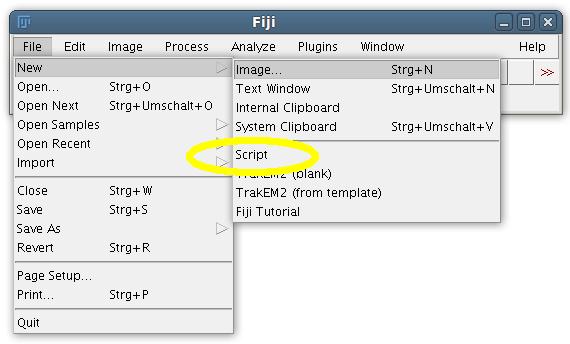
There is also the keyboard shortcut [ (open square bracket) to open the editor.
Choosing a language
Then choose a language from the language menu:
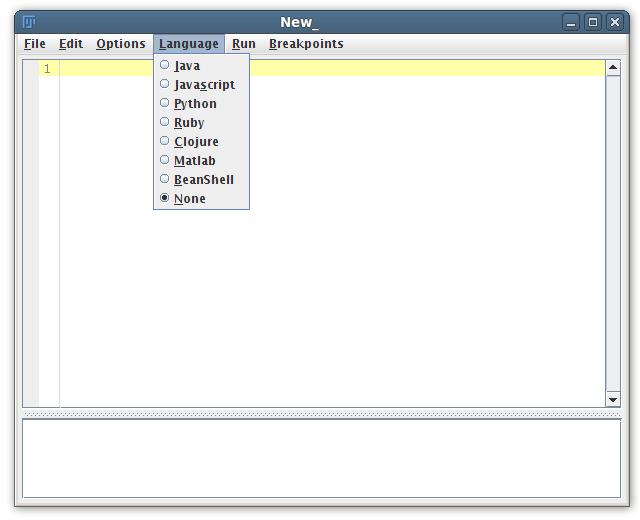
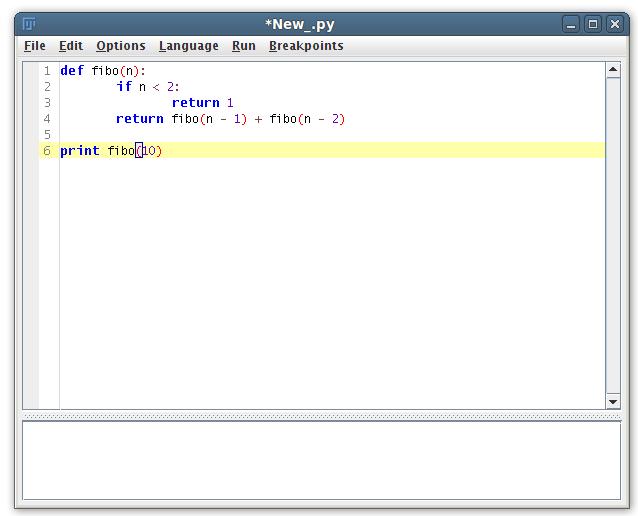
Now you can write your script. In this tutorial, Jython was chosen as scripting language, but the process is really the same for all scripting languages.
Running the script
Once you are satisfied with the script, run it. This does not require saving, but of course you should save your script later when it works.
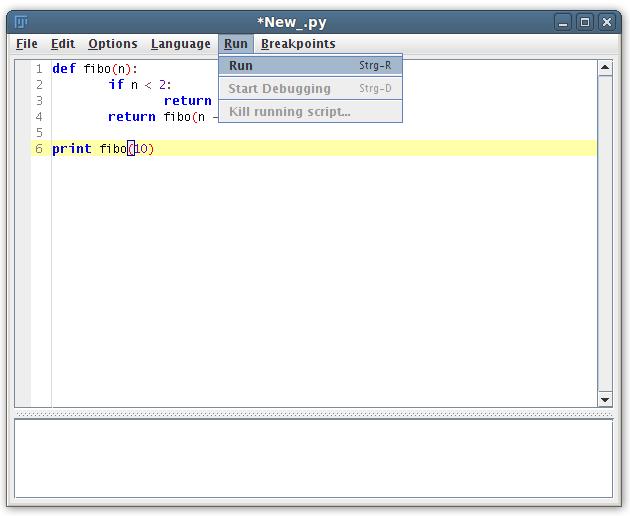
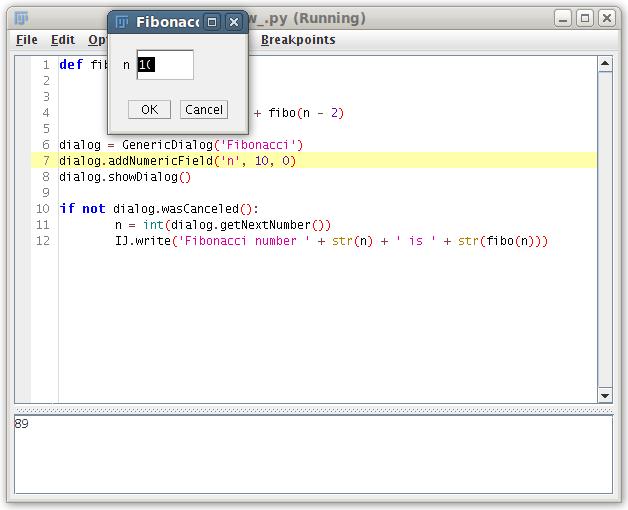
Note that while the script is running, the window title shows the tell-tale (Running).
To reference Java classes from you will need to import them.

Unlike the original ImageJ, ImageJ2 (and therefore Fiji) does not automatically import any classes. Consequently, scripts written for ImageJ will not run in ImageJ2 without adding the proper imports. The rationale is that the auto-import feature is not safe. What if two classes of the same name live in two different packages? Or if a new class is introduced that makes formerly unique names ambiguous? All of a sudden, all of the scripts that reference the original class no longer work. In short: auto-imports are dangerously imprecise.
You can use all of ImageJ’s classes right away. Here is an example that shows a dialog where the user can input a number. For details how to write dialogs in the different scripting languages, see Scripting comparisons.
Further reading
See the Scripting overview page for an introduction to scripting, and list of available languages, with links to more documentation.